Quick Start
Installation
Step 1 Unboxing product and accessories
Step 2 Drive the nail into the wall.
Step 3 Hang on the wall with backside hook
Step 4 Plug in the USB cable
Download App
ClockClock App is a remote software to control the device, which could be downloaded by the following ways.
iOS version is coming soon.
Windows Mac Android iOS (coming soon)Connect Wifi
Once ClockClock is powered on, search for the wifi point with name "ClockClock" and password "clockclock".
| # | Name | Password |
|---|---|---|
| 1 | clockclock | clockclock |
App Interface
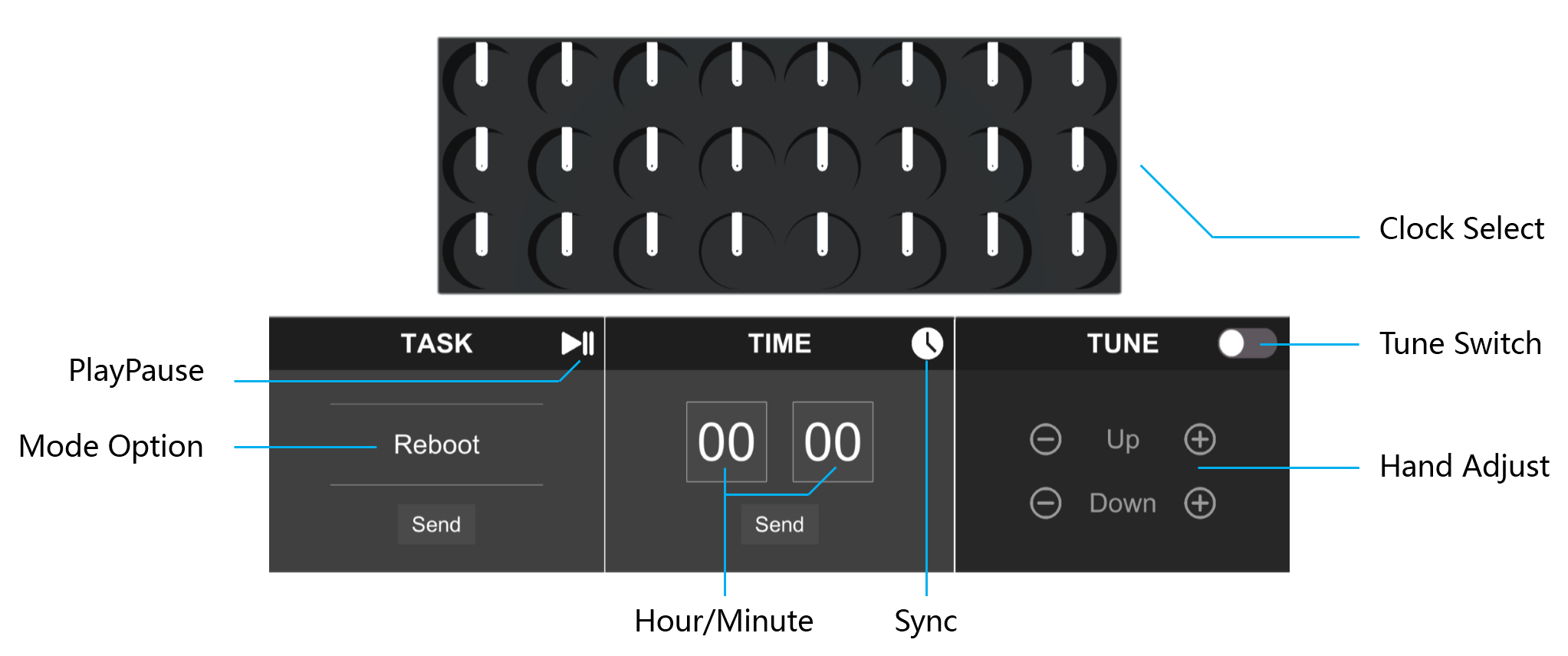
1. Task Panel
In the task panel, several modes are provided for users.
| # | Mode | Description |
|---|---|---|
| 1 | Reboot | Restart the device (this may reset some settings) |
| 2 | Propeller | Turn to ropeller style |
| 3 | Clap | Turn to clap style |
| 4 | RightAngle | Turn to rightangle style |
| 5 | Rotate | Rotate three times at current position |
| 6 | OnlyTime | Only show the time |
| # | Button | Action |
|---|---|---|
| 1 | Send | Send the selection mode to device |
| 2 | PlayPause | Play or pause the device |
2. Time Panel
In the time panel, user could set device time.
| # | Mode | Description |
|---|---|---|
| 1 | Hour | Manually select the hour |
| 2 | Minute | Manually select the minute |
| # | Button | Action |
|---|---|---|
| 1 | Send | Send the selected time to device |
| 2 | Sync | Auto sync and send network time |
3. Tune Panel
In the tune panel, user could manually calibrate the clock hand by following steps.
| # | Step |
|---|---|
| 1 | Turn on tune switch and wait 30 seconds to enter calibrate mode |
| 2 | Tap and choose the clock need to be calibrated |
| 3 | Click +/- button to adjust up/down hand position |
| 4 | Turn off tune switch and device will exit calibrate mode |
| # | Button | Action |
|---|---|---|
| 1 | Up +/- | Adjust up hand by step |
| 2 | Down +/- | Adjust down hand by step |